
How to Optimize Google Business Profile for Better Local SEO
Want more local customers to find you on Google? This beginner-friendly guide shows small business owners how to set up, verify, and keep a Google Business Profile accurate and complete.
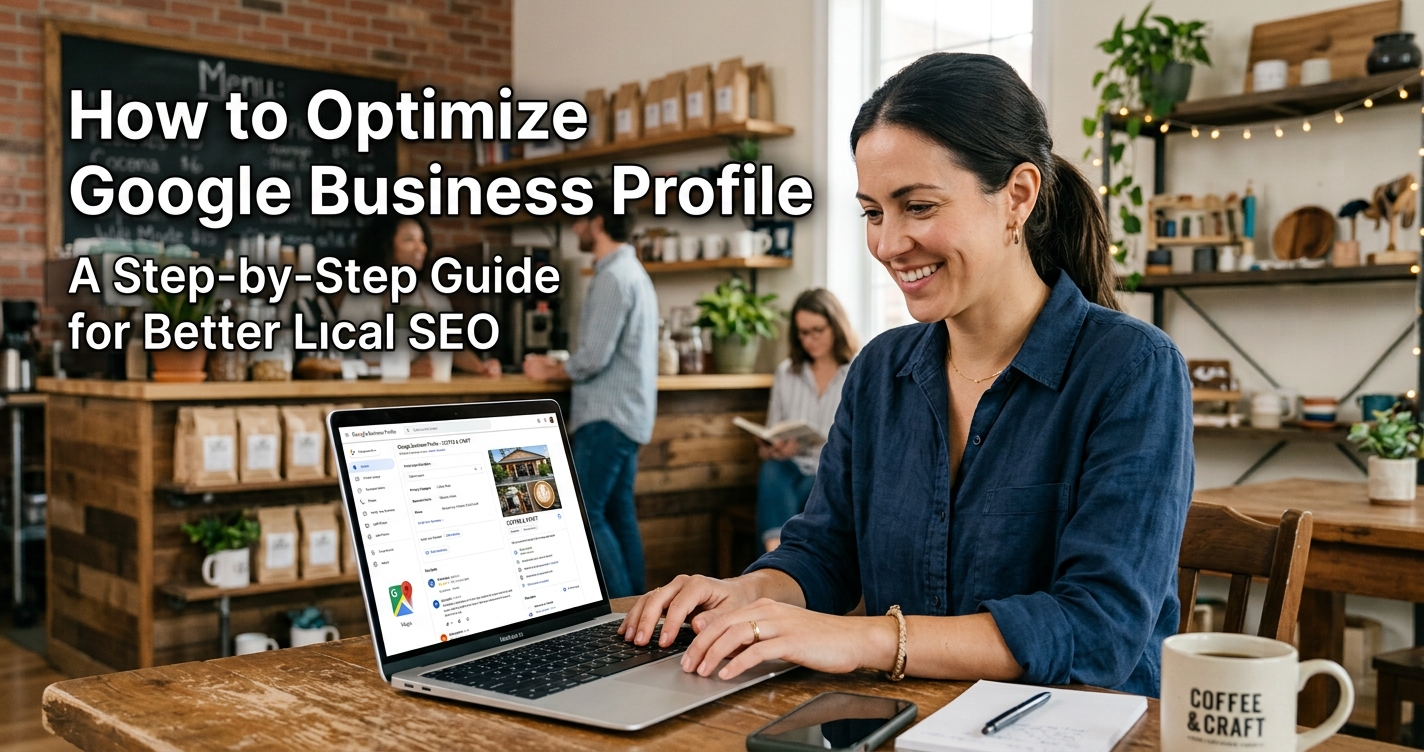
customer searches for a plumber late on a Sunday, taps the first result, and finds a phone number that no longer works. That one outdated detail can cost a call and a customer. For local businesses, the Google Business Profile is often the first thing people see, so accuracy matters.
This guide explains how to optimize Google Business Profile step by step, from verification and categories to photos, reviews, and performance data. You’ll also find sample wording for review replies, a list of common mistakes, and a checklist. Nothing here guarantees a ranking, but complete, accurate information gives both Google and your customers what they need.
What Is Google Business Profile and Why Does It Matter?
Google Business Profile is a free tool for managing how your business appears in Google Search and Google Maps. A complete profile can show your address or service area, hours, phone number, website link, photos, and reviews. Customers can then call, visit, or ask for directions in a few taps.
Google says local results are mainly based on relevance, distance, and prominence. It also states that there is no way to request or pay for a better local ranking. A profile is a way to give Google accurate information, not a shortcut to the top.
How to Optimize Google Business Profile Step by Step
Claim and Verify Your Business Profile
Search for your business name and city while signed in to your Google Account. If the business is listed, claim it. If not, add it. Then verify it, which tells Google you’re authorized to represent the business.
Google decides which verification options you see. Depending on your business type and region, these can include phone, text, email, a live video call, or a postcard. If you request a postcard, don’t edit your business name, address, or category while you wait, because the code may stop working. Most codes arrive within 14 days, and Google’s review after verification can take up to five business days.
Choose the Right Primary Business Category
Your primary category tells Google what kind of business you are. Google recommends using the fewest categories needed to describe your core business. A useful test is to finish the sentence “This business is a…” rather than “This business has a…”.
A plumbing company, for example, should choose a plumbing-related category. Adding unrelated categories, such as a store category for a business with no store, in hopes of catching extra searches doesn’t help. Google specifically says not to use categories solely as keywords.
Complete Your Business Information
Use your business name exactly as it appears on your signage, website, and stationery. Taglines, phone numbers, hours, and keywords don’t belong in the name field.
If customers visit you, enter a precise street address. P.O. boxes and virtual offices aren’t eligible. Service-area businesses that work at customers’ locations should list a service area instead. Google’s example is a plumber running the business from a home address, who should clear that address from the profile.
Add a local phone number your business controls and a website that represents your business.
Add Accurate Services, Hours, and Photos
List the services you actually provide, and remove any you’ve stopped offering. Enter your regular customer-facing hours and add special hours for holidays. If you’re planning seasonal campaigns, these holiday marketing ideas for small businesses can help you prepare. Businesses that work only by appointment shouldn’t list hours, according to Google’s guidelines.
For photos, Google suggests showing exteriors, interiors, products, your team, and your work. Use JPG or PNG files between 10 KB and 5 MB that are in focus and well lit, without heavy filters or excessive AI. Photos should show reality, because customers will compare them with what they find in person.
Write a Clear and Helpful Business Description
Use the description to explain your services, products, and history. A sample might read: “Bright Water Plumbing is a plumbing company serving Austin and nearby areas. We repair leaks, install water heaters, and clear drains.”
Google doesn’t allow links in this field. It also rules out special promotions, prices, and sale language such as “Everything on sale.” Gimmicky characters and gibberish are out too. Stick to honest, specific details a customer would find useful.
How to Get and Respond to Customer Reviews
Reviews are part of the prominence factor Google describes, and Google says more reviews and positive ratings can help local ranking. The way you ask matters, though. You can send customers a direct link to your Google review page, and you should ask everyone, not only people you expect to be happy.
A simple request might say: “Thanks for choosing us today. If you have a minute, we’d appreciate an honest review on Google.”
A professional response to a negative review could read: “Hi Dana, I’m sorry our technician arrived later than planned. That isn’t the experience we want to provide. Please contact our office directly so we can look into it and make it right. Sam, Owner.”
Google recommends polite, personal, timely replies that avoid personal attacks and private details. Google’s policies also prohibit several practices:
- Paying for reviews or offering incentives such as discounts or free items.
- Selectively soliciting positive reviews, or discouraging negative ones.
- Fake reviews.
- Pressuring customers to review on the premises or asking for specific content.
Common Google Business Profile Mistakes to Avoid
- An inaccurate or keyword-stuffed name. Use your real-world name only. If you’ve added extra words, edit them out.
- Irrelevant categories. Keep the primary category specific and add only secondary ones that describe your core business.
- Outdated information. Check hours, phone numbers, and addresses whenever something changes, and after holidays.
- Unnecessary duplicate profiles. Google’s guidelines for representing your business say there should be one profile per business location. If you find a duplicate, use Google’s duplicate-resolution tools to merge or remove it.
- Misleading photos or descriptions. Replace images that no longer match reality and rewrite vague or exaggerated claims.
- Buying reviews or manipulating ratings. Don’t. Build reviews slowly through genuine requests.
- Expecting guaranteed top rankings. Treat optimization as ongoing maintenance, not a one-time fix.
How to Measure Google Business Profile Performance
Verified profiles can access a Performance section, available through Google Search or the Google Maps app. It lists metrics such as searches, views, calls, website clicks, direction requests, and messages. Only metrics that apply to your business appear, so yours may differ from another profile’s.
Pick a date range and compare periods, such as before and after you update photos or hours. Keep in mind that these figures show interest, not sales. A call or direction request doesn’t guarantee a customer.
Google Business Profile Optimization Checklist
- Confirm you own the profile and that it’s verified.
- Review your primary business category.
- Update contact information and hours.
- Check service details and your business description.
- Add accurate, current photos.
- Ask customers for genuine reviews, without incentives.
- Reply professionally to customer feedback.
- Review available performance data periodically.
Frequently Asked Questions
Is Google Business Profile free to use?
Yes. Google states that creating a Business Profile is free. Costs only arise if you choose separate paid options, such as advertising.
How long does Google Business Profile optimization take?
Verification can take days or weeks depending on the method, and Google reviews your submission for up to five business days afterward. Google doesn’t publish a timeline for ranking changes, and optimization is ongoing.
Does Google Business Profile help local SEO?
It can. Google recommends using your profile to improve local ranking, and complete, accurate information supports relevance. Results aren’t guaranteed.
Can a business rank on Google without a website?
Google’s guidelines ask for a phone number or a website that represents the business, so a profile can exist without a site. A website can still help, since Google says links to your business contribute to prominence.
How often should you update your Google Business Profile?
Update it whenever something changes, such as hours, services, or contact details. Google doesn’t set a schedule, but checking reviews and information regularly is a sensible habit.
Next Steps for Your Business Profile
The most important steps are simple. Verify your profile, choose an accurate primary category, keep your name, contact details, and hours correct, add honest photos, and ask customers for genuine reviews. Then check your performance data now and then to see how people use your profile. None of this is a one-time task. A business that stays current gives customers fewer reasons to hesitate and gives Google clear information to work with.
Written by
EmmaYou might also like

12 Low-Budget Holiday Marketing Ideas for Small Businesses 2026
Discover 12 affordable holiday marketing ideas to attract more customers and boost sales this season, without spending a lot on ads.

Jobs Report Shocker Boosts Fed Rate Hike Odds to 50%+
A surprisingly strong August jobs report has pushed the odds of a Fed rate hike this month above 50%, rattling stocks and bond yields
 Trending
Elon Musk Becomes World's First Trillionaire After SpaceX IPO
SpaceX's blockbuster stock market debut pushed Elon Musk's fortune past $1 trillion, making him the first person in history to reach trillionaire status though the wealth remains largely on paper for now.
Comments (0)
Be the first to comment.